





Resolving the limitations of Webflow’s built-in columns to maximise it’s potential to your website’s needs.
Webflow has plenty of built in sections that are brilliant for web developers who come from a design background rather than a development background.
The process of building a beautiful website without code has become a breeze, but there is one major problem with the current Webflow system: the built-in columns element.
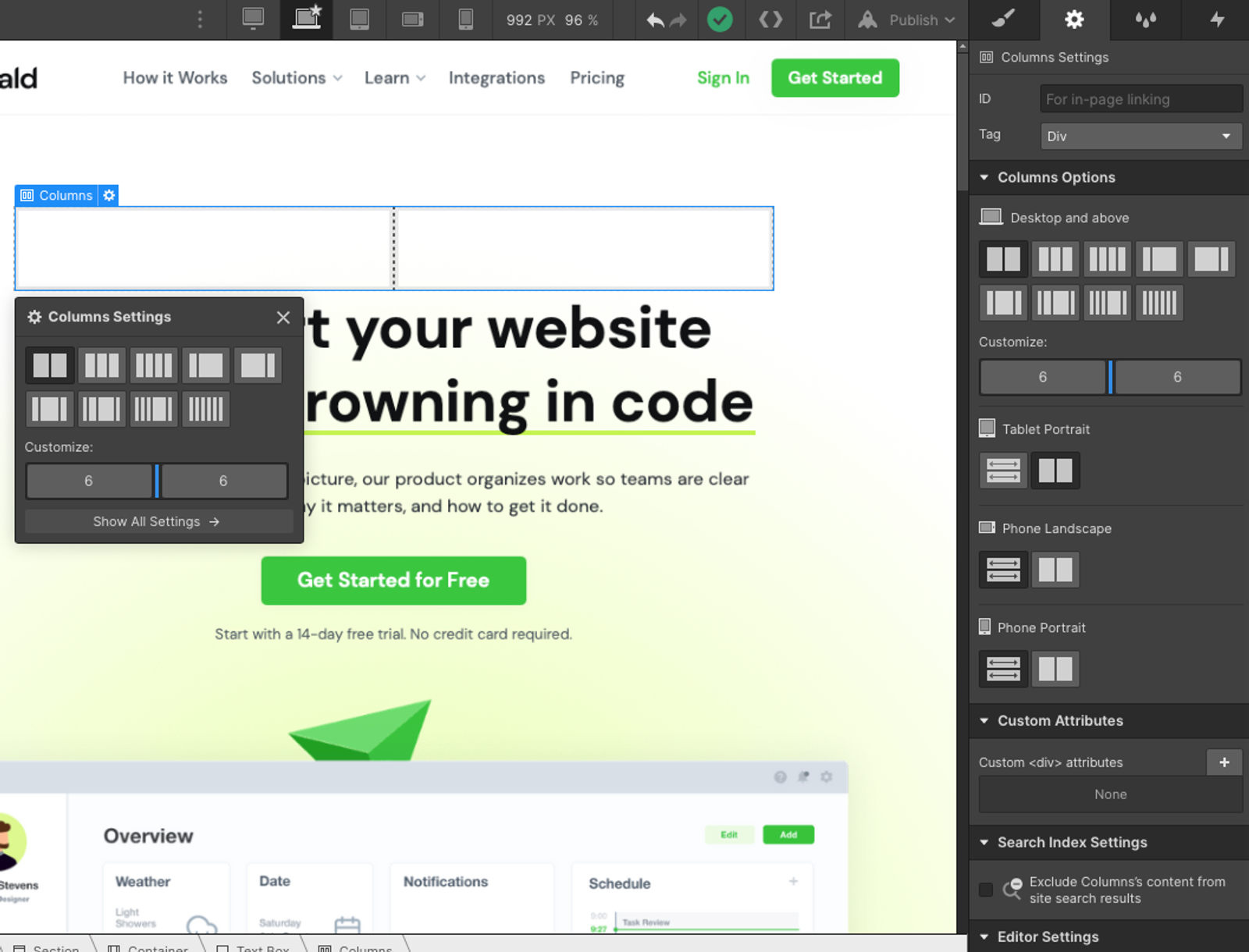
The simplicity of the column element is its very downfall.
There is not enough flexibility to bend the columns to exactly what you need across screen sizes, so you might start building with columns, and then realise you can't build the design you need.
There is also no option to change padding between columns, meaning you have to add padding to any and all elements within a column so that content in the different columns isn't rubbing up against each other.
The best way to work around this for better columns and more complex layouts is to set up our own column layout.
The 12 Column Grid
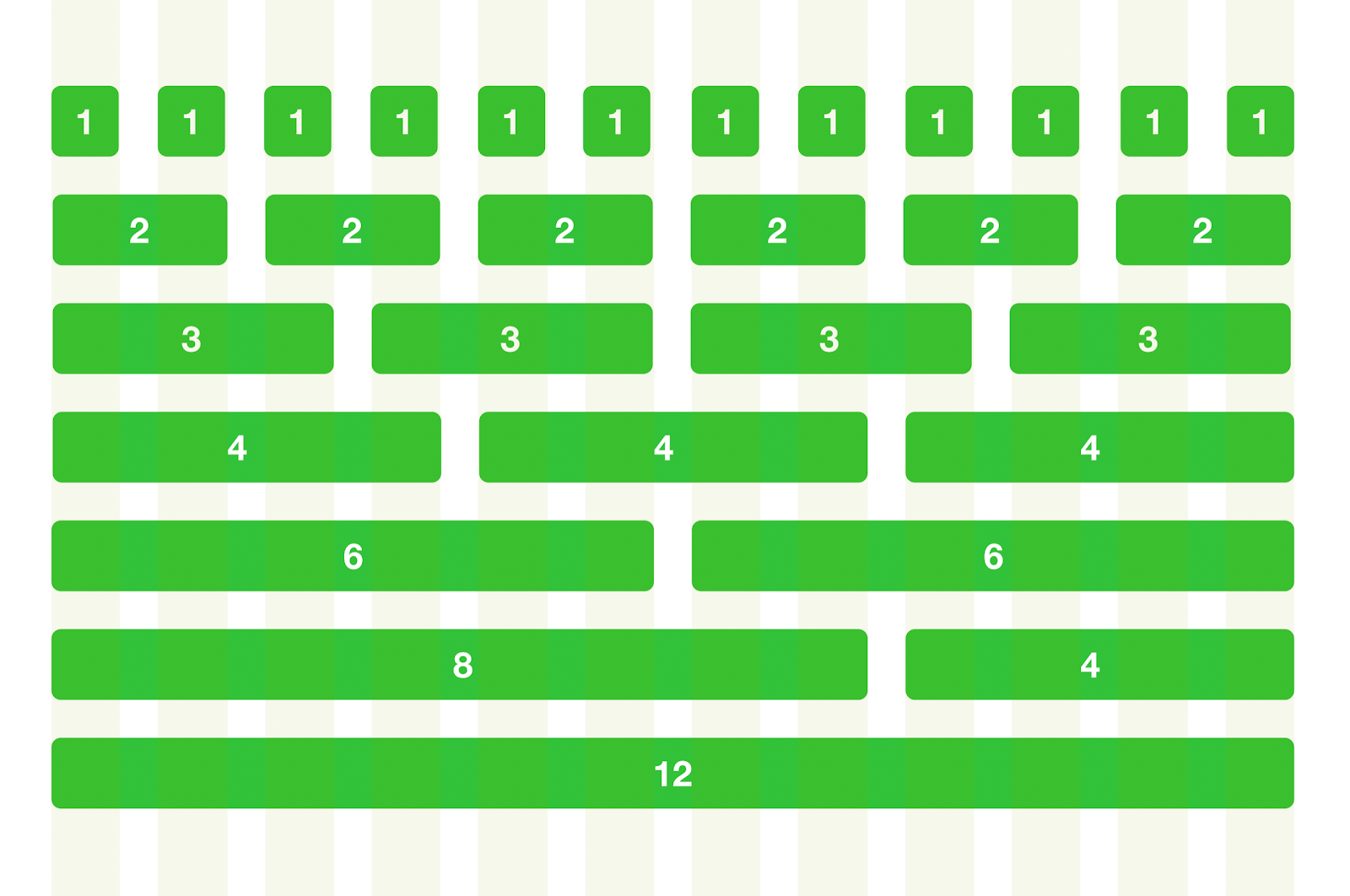
The layout I recommend using is the 12 column grid, the same grid used for Bootstrap websites. It makes it easy to align everything in a clean and precise way across a website and across different screen sizes.
It also makes it easier to convert a design to the web if you're designing off of a 12 column grid in a programme such as Figma.
The layout works by using classes for each column size, so you can create hundreds of different layouts within the 12 columns by using different column combinations.
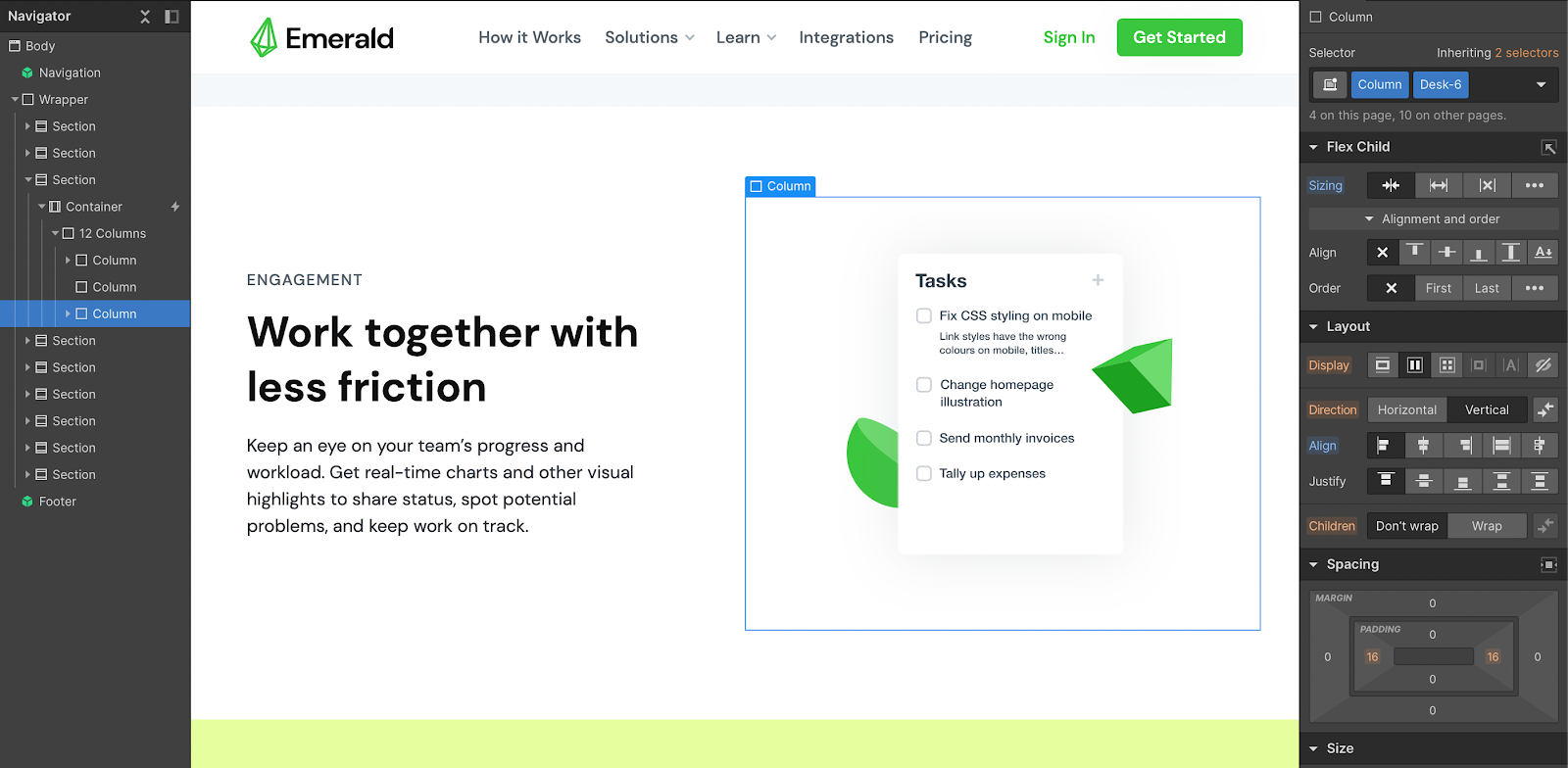
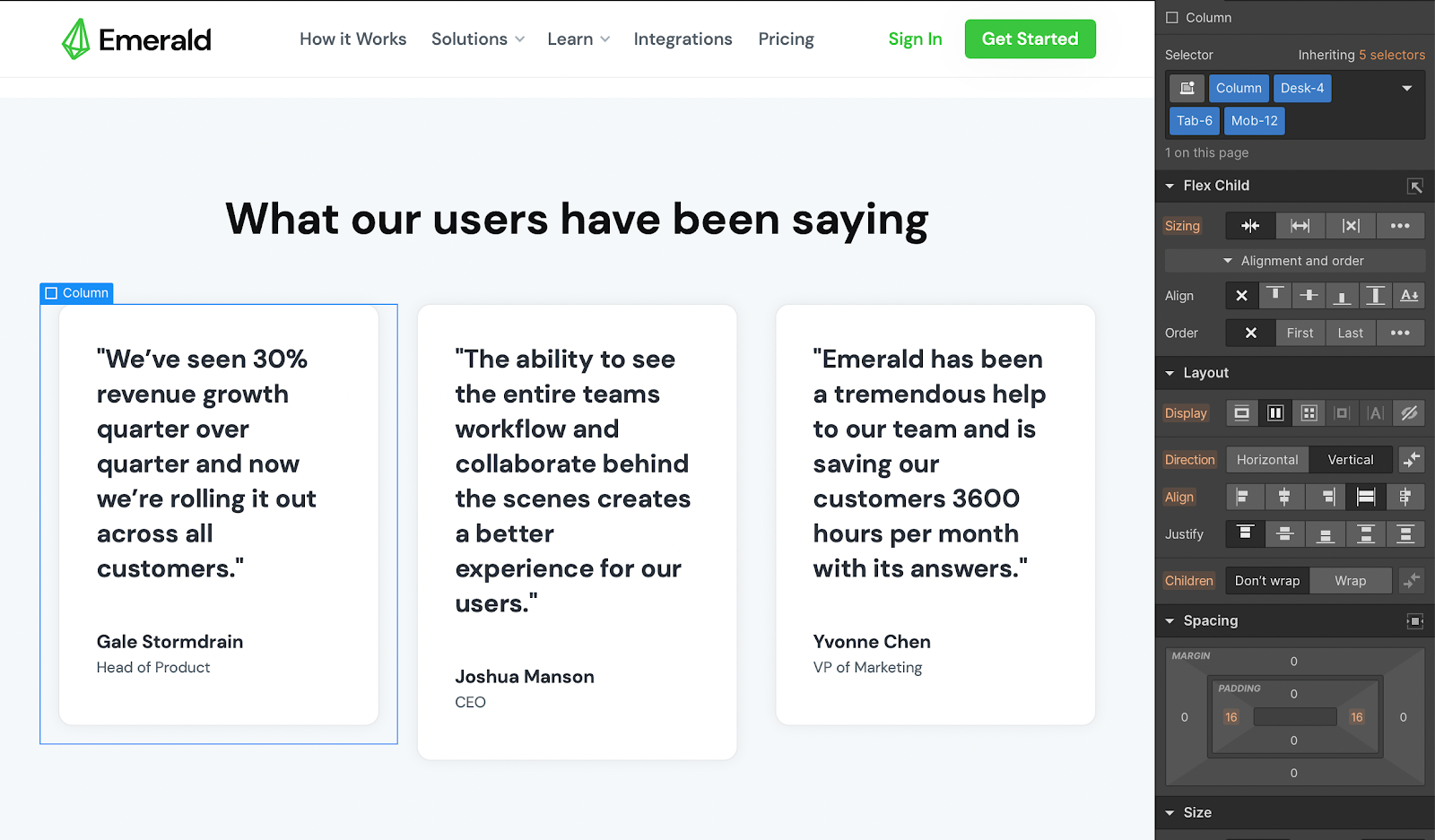
Here is the 12 column layout used for a feature section, with a 5-Column for the text, 1-Column for the gap, and 6-Column for the illustration. You'll want to initially set up the columns with a "desk" or "desktop" class, so that you can change the size of the columns for tablet and mobile by adding on other classes.
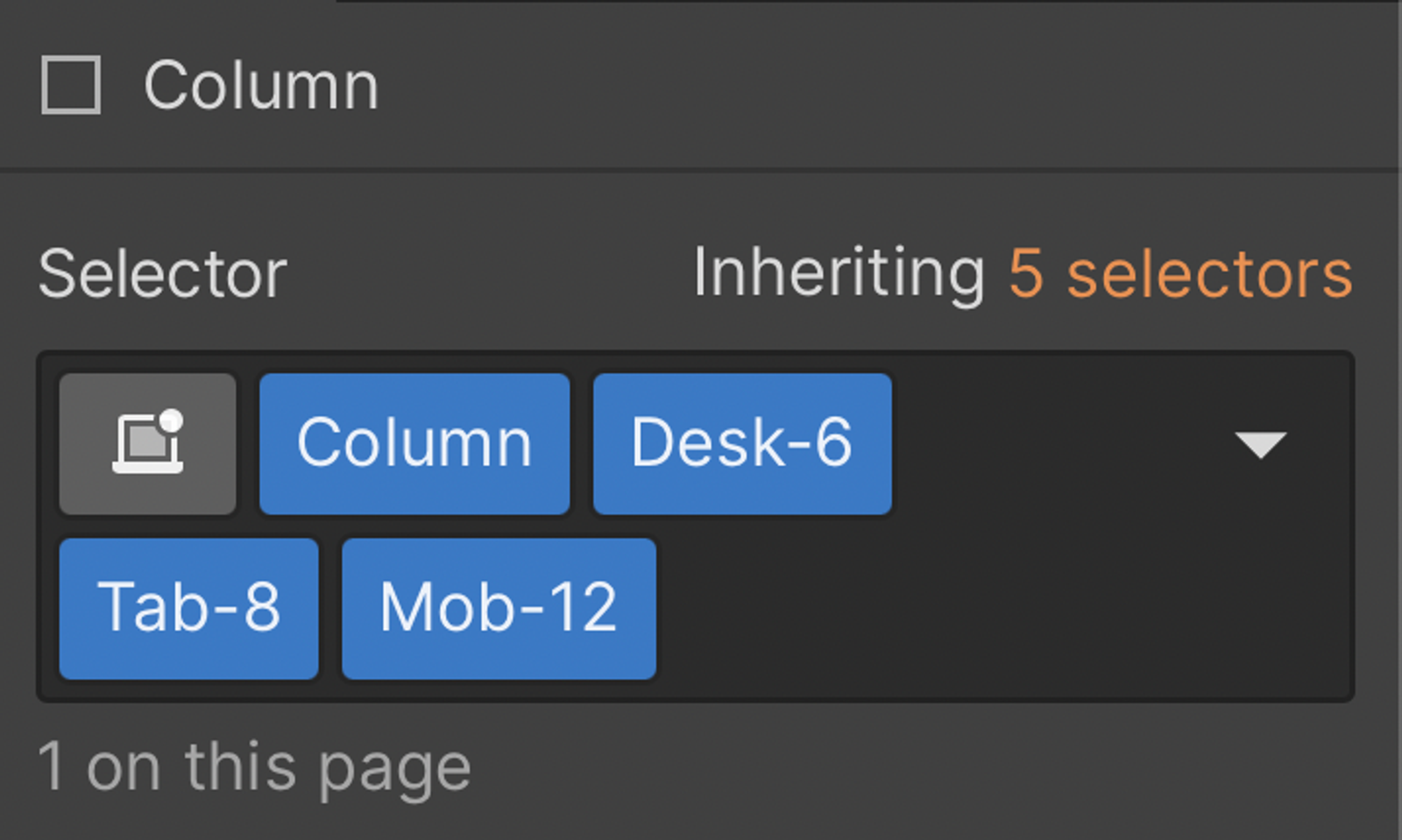
This is an example of what your classes might look like to change the size of the column across screen sizes. This column will fill 6-columns on desktop, 8-columns on tablet, and 12-columns on mobile.
Once you have the system set up, it’s extremely easy to work it into the layouts you need to build. Let’s learn how to set up the system now.
Building the 12 Column Layout
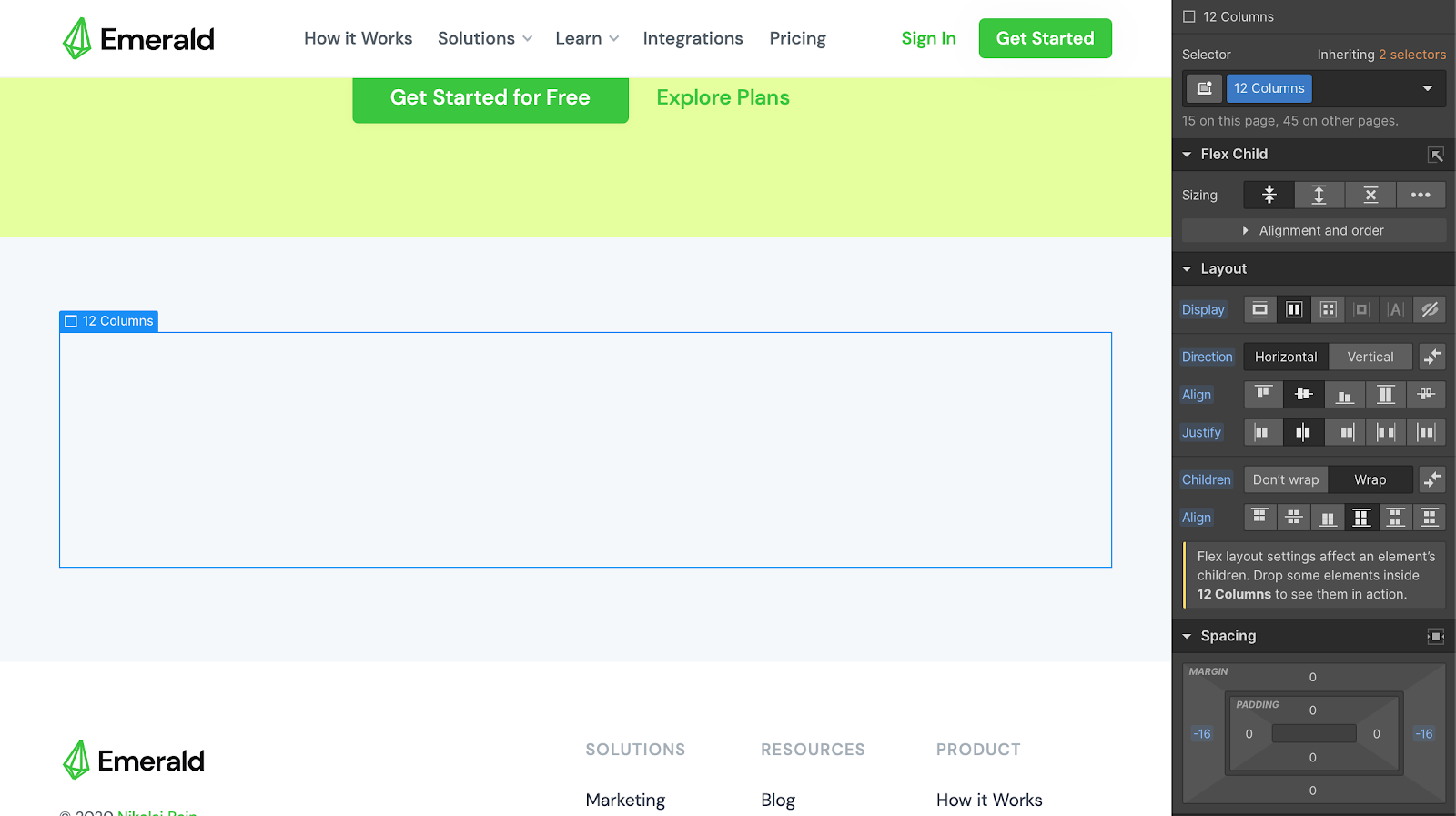
To start, create a div and give it a "12 Columns" class (or "12-column-row", or however you prefer to format your classes). Then add a negative margin of -16px on both the left and right of the element. This makes it so when we add our columns in, we can give it a 16px margin and everything will line up, whilst having plenty of space between columns.
Set your "12 Column Row" class to horizontal flex-box with wrap turned on. This is so if you go over 12 columns, it will be pushed to a new line.
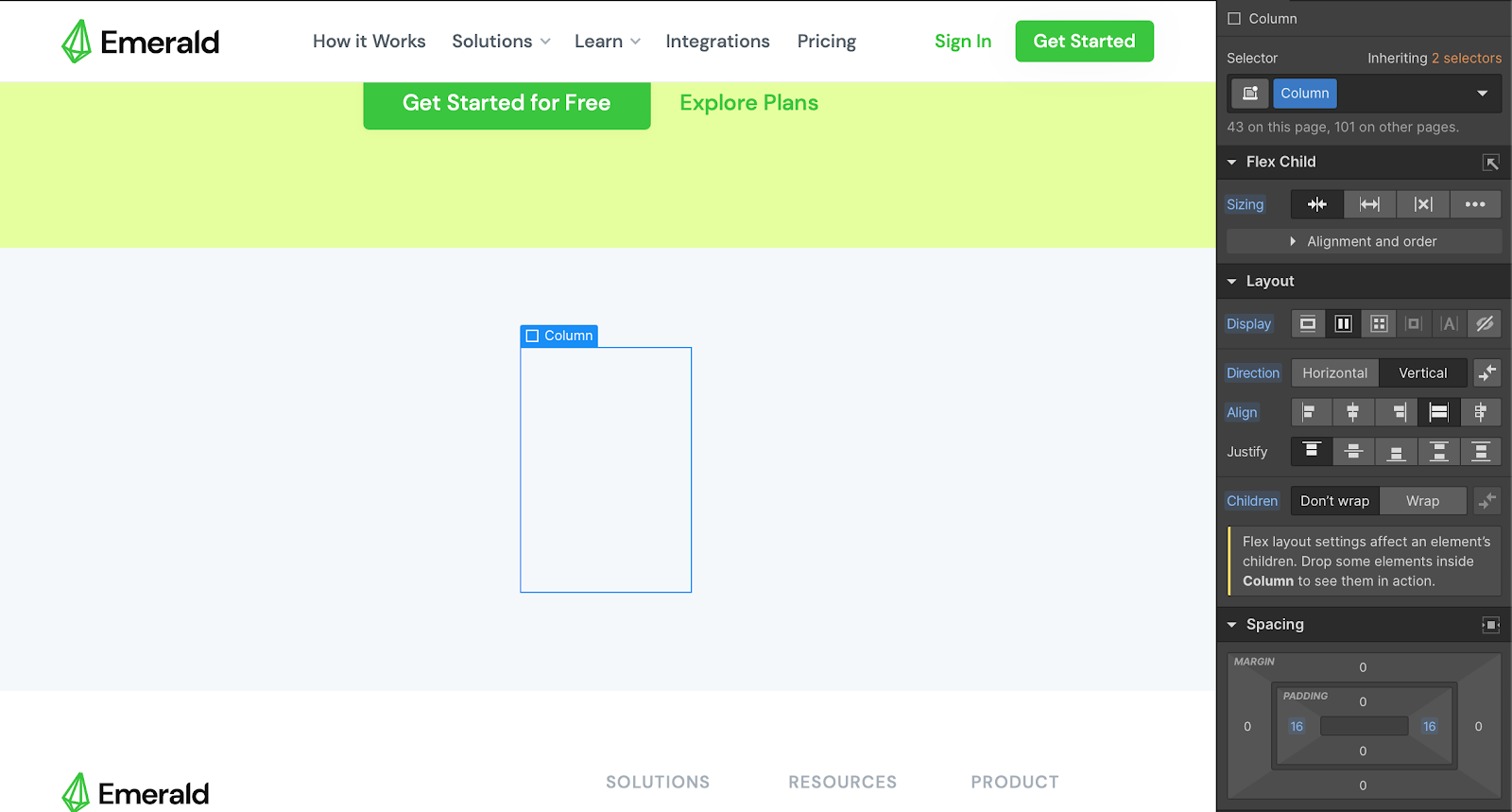
Setting up a Column
Next you want to set up all the columns that go inside the 12 column row. Create a div and give it a "Column" class, and give it a 16px left and right margin that I mentioned earlier. You can make the initial width any size, but we are going to add combo classes to override how wide an element is.
You can name your combo classes in any format, but I would recommend "Desk-1", "Tab-1" and "Mob-1". The name defines what screen size it's for, and the number defines how many columns the element takes up.
Let's start by adding on a Desk-1 class so we can style for desktop.
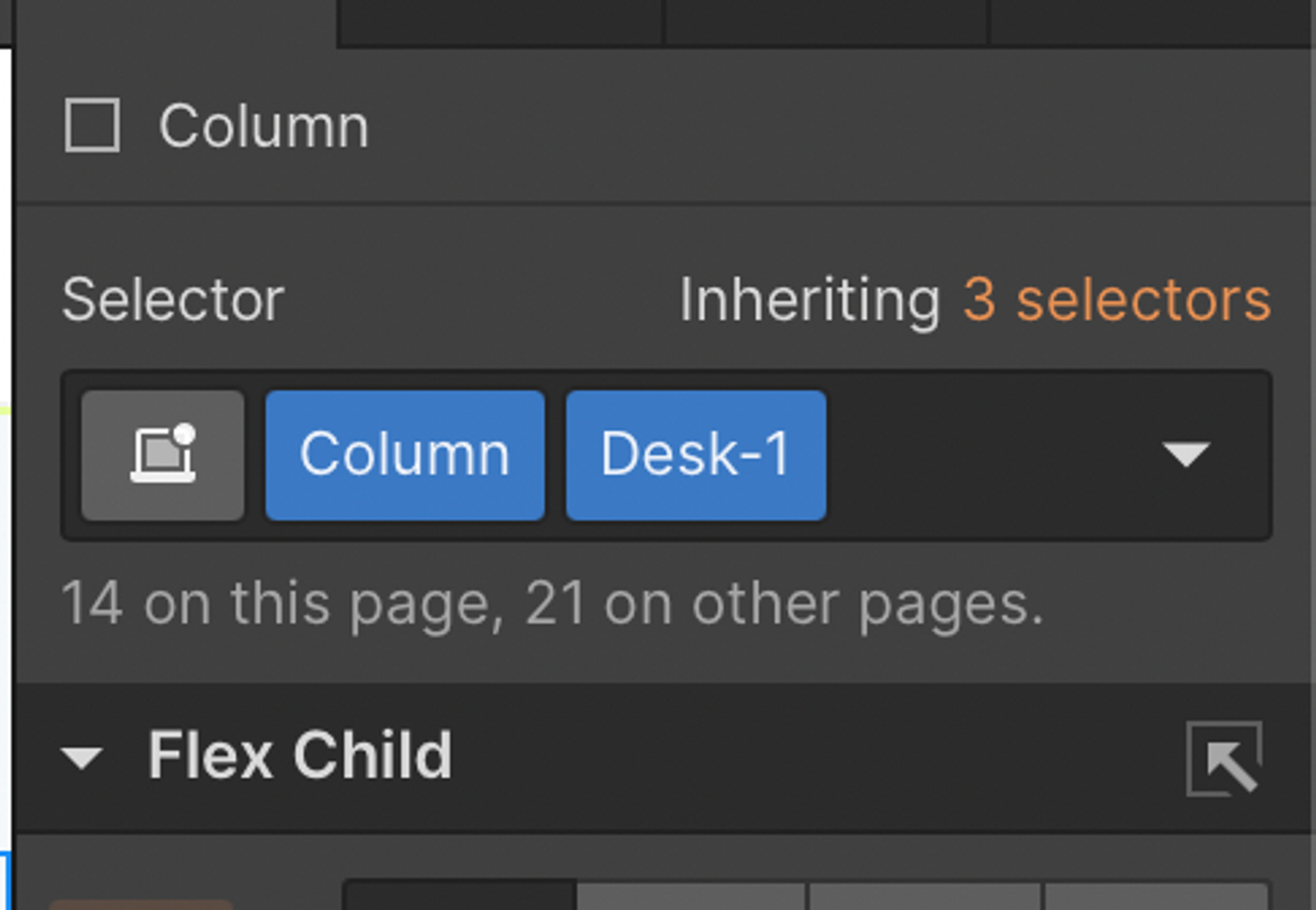
We want to add in how wide the element is. If we want everything to fit into 12 columns, we can work off a percentage based system. So 100% of the row, divided by the 12 columns, multiplied by how many columns the element takes up.
100% / 12 * 4 would take up 4 columns, and equal 33.33%.
100% / 12 * 1 would take up 1 column, and equal 8.33%.
Once you've set up these columns, you can start to use them to create different layouts.
For example, a layout for a section could look like Desk-2, Desk-8, Desk-2. This adds up to the 12 columns and will perfectly fit within that row.
Working across different screen sizes
If we want the column size to change across screen sizes, such as for tablet and mobile, then we can add combo-classes onto our class.
Change the screen size to "tablet" at the top, and then add on a combo class for tablet with the appropriate column number.
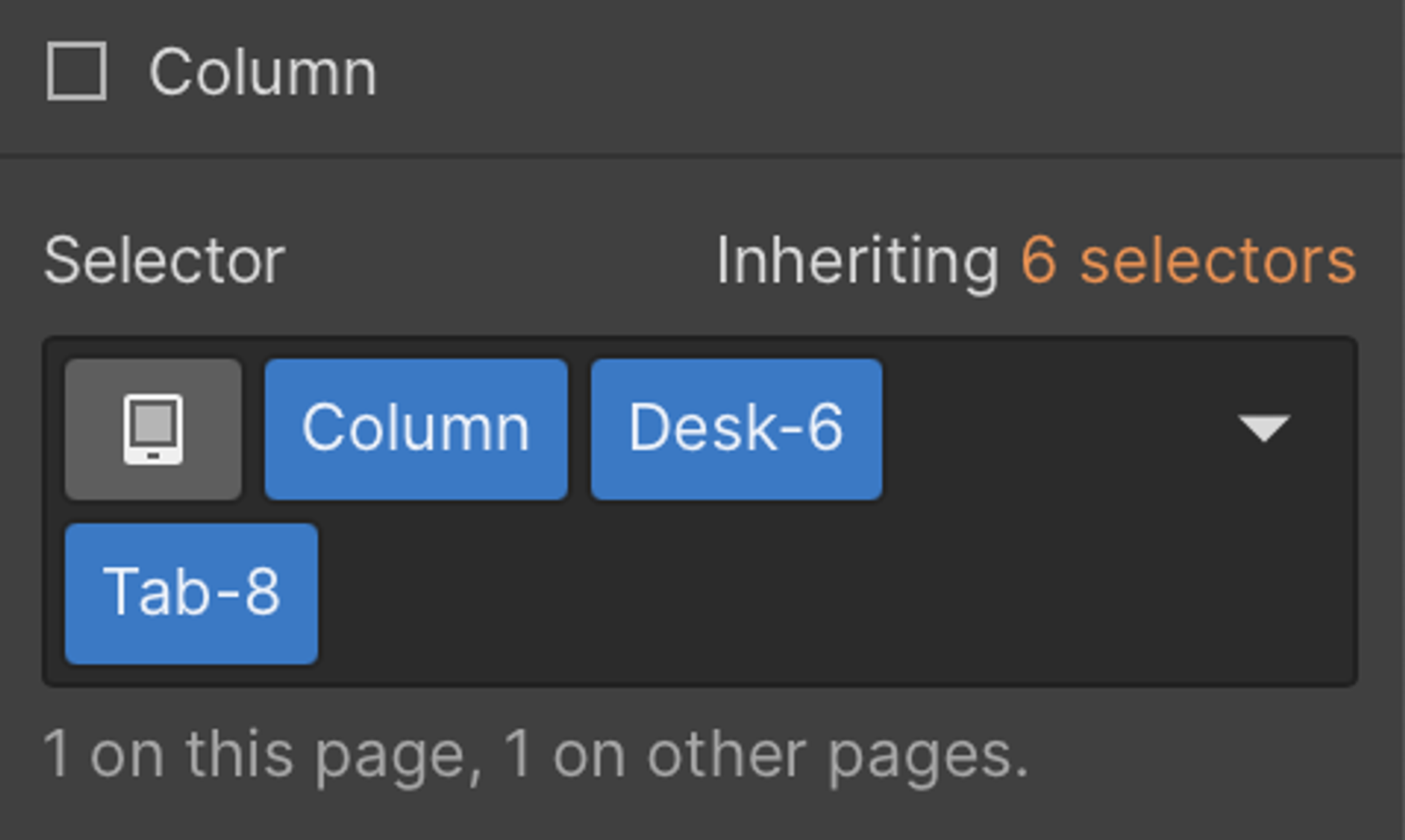
Now all we need to do is adjust the width of the div to reflect the new size we want. In this case, it's 66.66% (100 / 12 * 8)
Let's finish this column off by changing to "mobile landscape" screen size from the top, and then add on another custom class for the new column size. Then adjust the width again to reflect the new size.
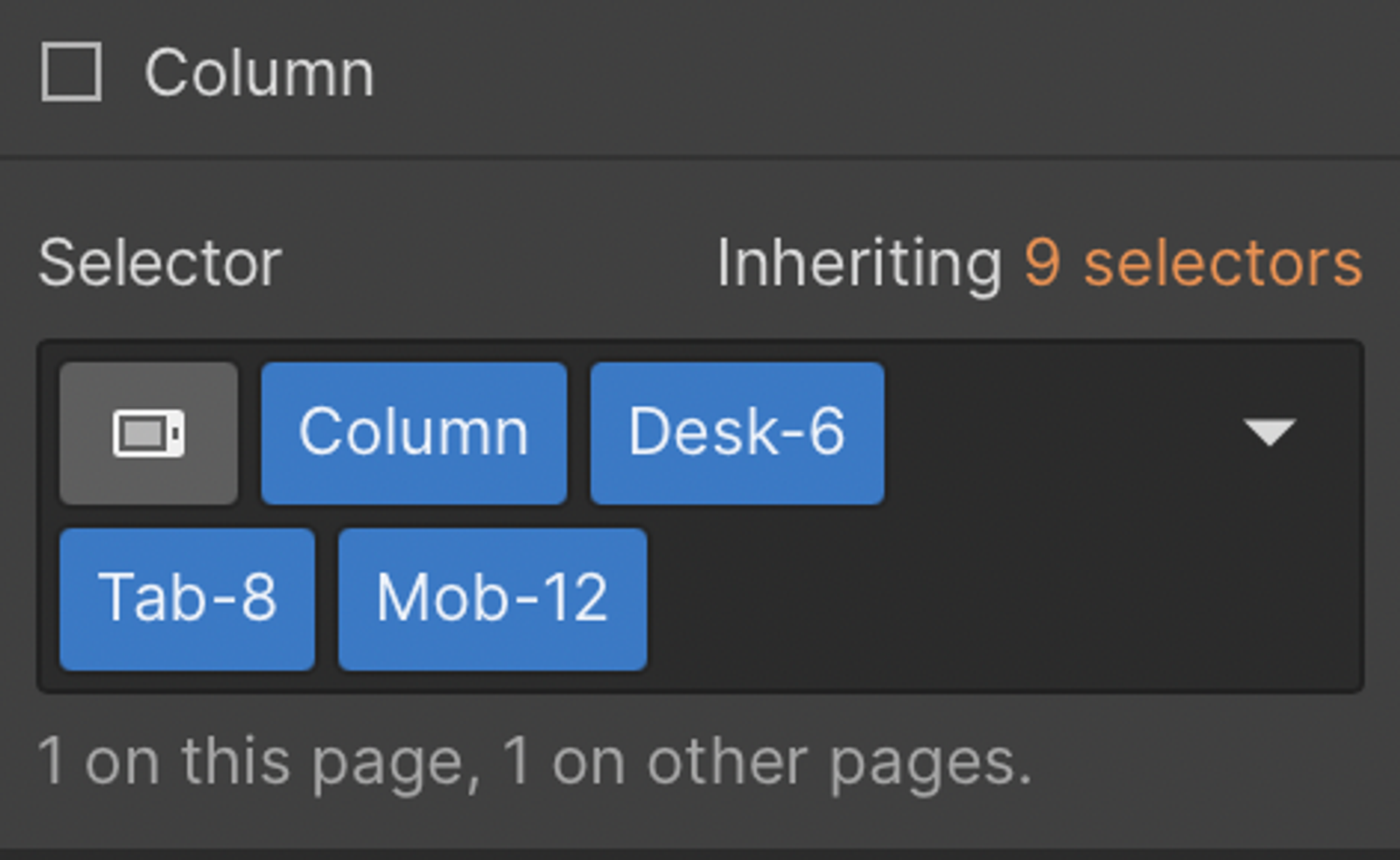
And that's the whole set up! As it can take a while to add all of these combo classes for each column size, you can always leave the full set-up, and only add-on the classes when you're building them.
Summary
Though it might initially sound more complex than you might be used to with the ease of working with Webflow, this system is well worth the effort of setting up and getting comfortable with.
By using the custom 12 column layout alongside the built-in grids, you'll have an unlimited supply of different layouts you can work with to build great websites.
When to Use the 12-Column System, and When Not To
A custom column system is powerful, but it is not the answer to every layout. Use it for page sections where you want consistent alignment and predictable behaviour across breakpoints: feature sections, text and image rows, card layouts and anything that follows your design grid. For complex or irregular layouts, such as overlapping elements, masonry-style galleries or dashboards, Webflow's built-in grid is often the better tool, because you can place items on a grid of rows and columns directly. The approach in this post is meant to complement it.
Is This Still Needed With Flexbox Gap and CSS Grid?
Webflow now has strong support for CSS Grid and for the gap setting on flexbox layouts, which means you can space columns with a gap instead of the negative margin technique in this guide. For new builds you may prefer that, since it removes the need for the negative margin on the row and the margin on every column. The benefits of the system itself remain: a small set of reusable classes, a naming convention that tells you how wide a column is at every breakpoint, and a direct match with a 12-column grid in Figma. Choose whichever you find easiest to maintain, and keep to it across the project.
Common Problems and Fixes
- Columns wrapping unexpectedly: the widths plus margins add up to more than 100%. Check the row's negative margin matches the column margin, and that column numbers in a row add up to 12 or fewer.
- A horizontal scrollbar appears: the negative margin on the row can push content past the edge of the page when there is no padding on the parent. Make sure the row sits inside a container with horizontal padding.
- Columns not stacking on mobile: a column without a mobile class keeps its tablet width. Add a mobile combo class set to 100% for any column that should stack.
- Too many classes to manage: you do not need every combination up front. Create the Desk, Tab and Mob classes as you need them, and reuse the existing ones.
- Uneven heights: if cards in a row have different heights, set the row to stretch its children and make the cards fill their column.
Making It Part of Your Workflow
Columns are one piece of a consistent build. Pair the system with the section and container structure I describe in structuring content on a Webflow website, and record the class names in your design system so everyone on the project uses them the same way. Naming matters: a pattern like Desk-6, Tab-8 and Mob-12 only works if every column follows it, and my guide to Webflow naming conventions shows how to keep that tidy as a project grows. If you are working from a design in Figma, the same grid helps designers and developers speak the same language, and I cover that handover in the Figma to Webflow design handover process.
Frequently Asked Questions
Why use a custom 12-column grid in Webflow?
It gives you precise control over column widths at every breakpoint, consistent spacing, and a layout system that matches a 12-column grid in a design tool like Figma.
What are Desk, Tab and Mob classes?
They are combo classes that set a column's width for each screen size. The number says how many of the 12 columns the element takes up, so Desk-6 is half the row on desktop.
Can I use this with Webflow's built-in grid?
Yes. Use the column system for standard sections and the built-in grid for irregular layouts that need rows and precise placement.
How do I calculate a column width?
Divide 100% by 12 and multiply by the number of columns. For example, 4 columns is 100 / 12 × 4, or 33.33%.
Does this system work well for responsive design?
Yes. Because each column has its own class for each breakpoint, you can change how a layout stacks on tablet and mobile without affecting desktop.