






Introduction
Icons are an essential building block used when designing a website. Having a consistent icon style used throughout a website helps to tie the whole theme of the design together.
Designing all your icons from scratch helps to create a unique look and feel for a website, but eats up far too much time when there are already plenty of great icon sets that you can find online.
When working with icons for Webflow, the usual process is: dropping all the icons you want to use into a design program such as Figma, recolouring them, exporting them, and uploading them to Webflow.
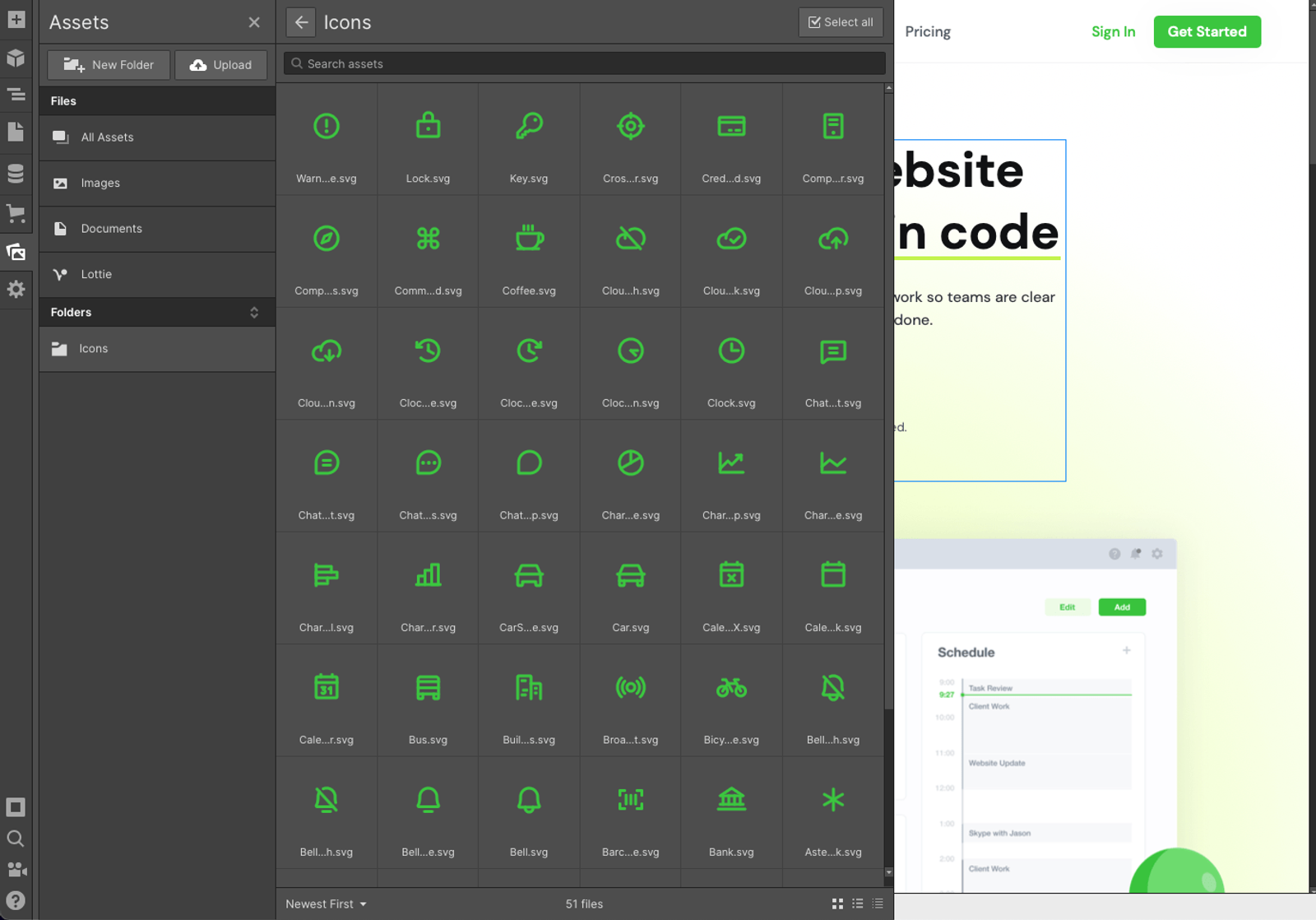
You can then create a folder for all of your icons to keep things as neat and tidy as you can.
The issue with this is that you still have to source all of the icons yourself, and once you've added them you can't change the colour of any of them. You also will still have all the icons in the rest of your images files when trying to browse for other assets.
Though this way of working with icons is straight forward, it's not as flexible as it could be, and when you start adding in too many icons, it becomes even more of a pain to browse them.
So what's the alternative?
Using an Icon Font
Icon fonts are a type of font we can install to add icons into our Webflow project. Instead of working with them in the assets tab of a project, we install the font, and change our font to the icon font whenever we want to add an icon.
Working this way we can change the colour of all our icons at any time, as the icons will be coloured the same way fonts in our projects are. This is much more flexible to use the icon how you want, and gives you plenty more icon options to choose from without it taking up any space in your assets library.
How to install an icon font
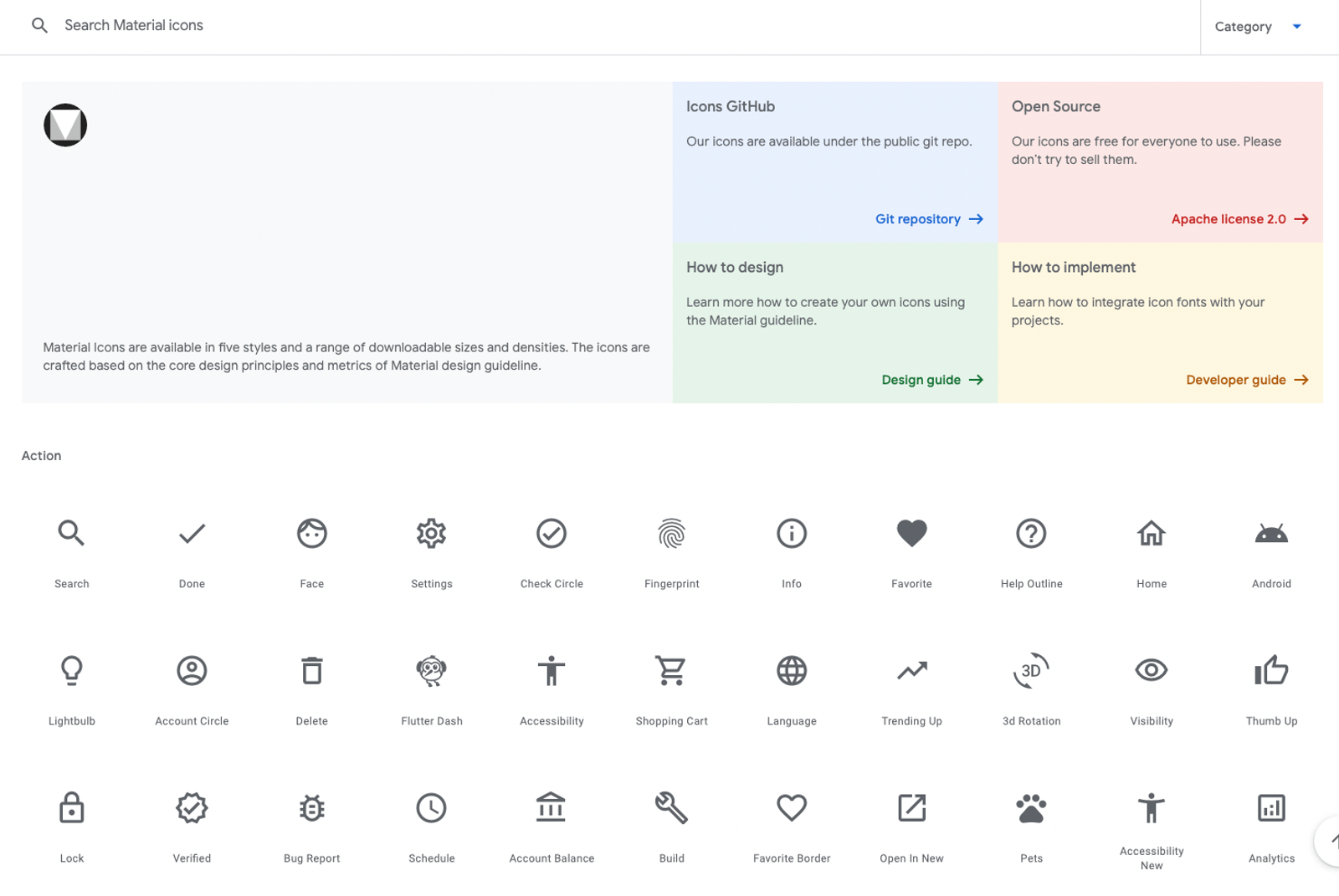
If you've never worked with an icon font set before, a good one to start with is Google's Material Icons. The style options to choose from include outlined, filled, rounded, sharp, and two tone. Through their Github page, you can download the font for the style that you want.
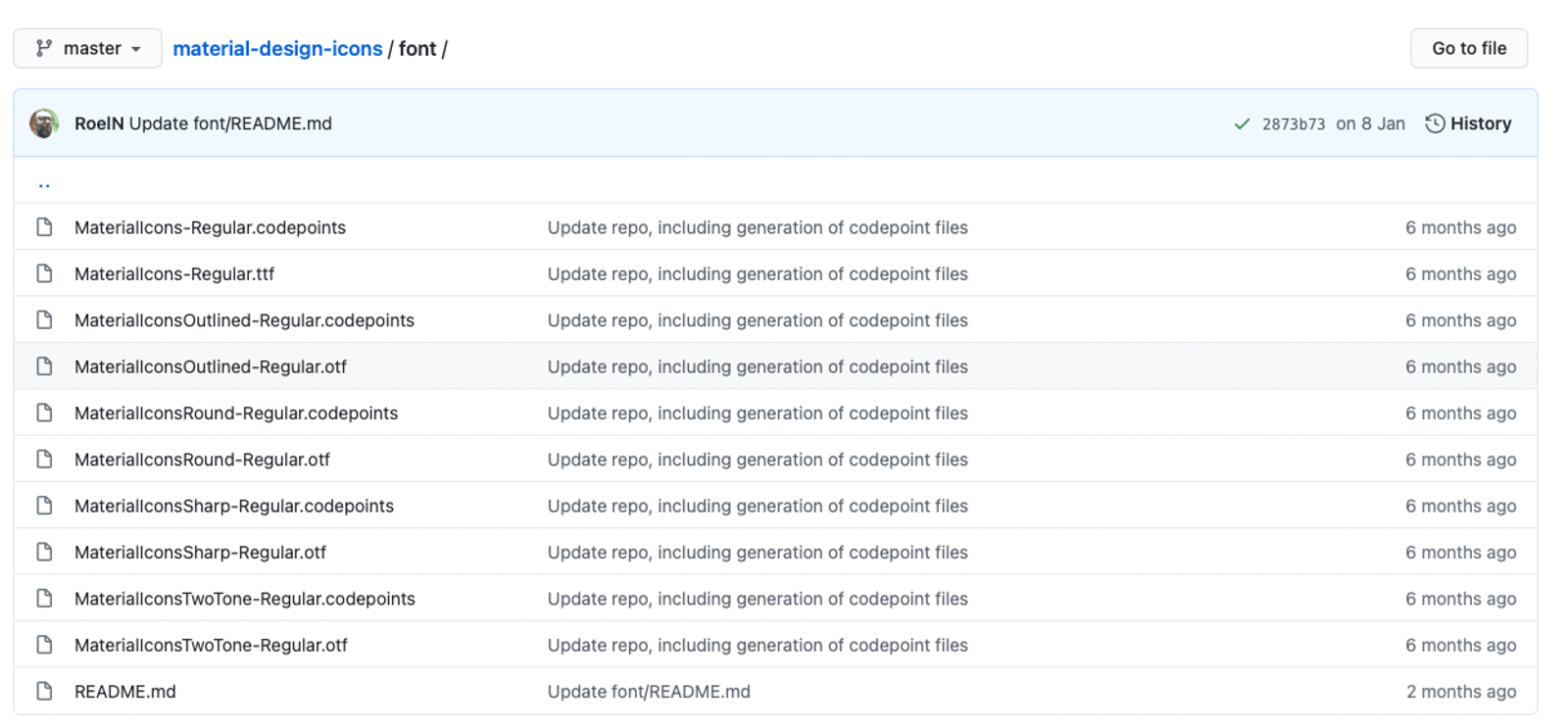
Once you've downloaded the option you want, upload it in the fonts tab of your project settings. You upload this font the same way you upload any other custom font, through the Custom Fonts section. Format the name in all caps so you can see the font name easily in the designer.
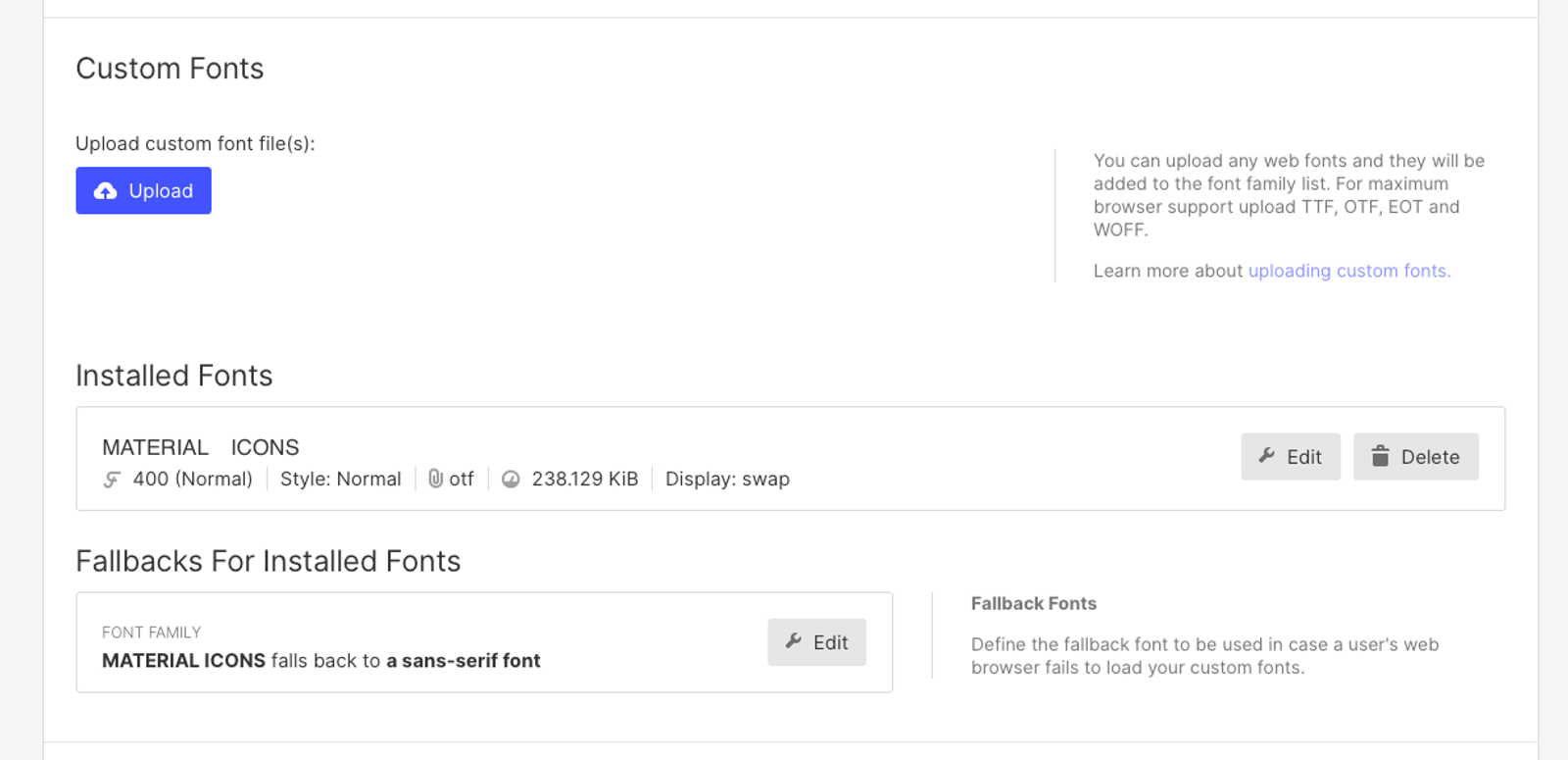
Now that you've installed the font, jump into the project designer so we can use it.
Using the Icons in the Designer
With the font installed, adding an icon works like adding text:
- Add a Text Block (or a Div Block with a text element inside) wherever the icon should appear.
- Give it a class such as "icon", and set its font family to the icon font you uploaded.
- Type the name of the icon as the text content. Material Icons uses ligatures, so typing a name such as "home" or "search" turns into the matching icon. You can find the names in Google's icon library.
- Set the size with the font size, and the colour with the text colour, exactly as you would for any text.
Because icons are now just text, you can build a reusable icon class with a standard size, then use combo classes for small and large variants. If you set up your colours as variables, as described in my guide to creating a system for colour swatches in Webflow, a rebrand then changes every icon in one place. This fits neatly into a wider Webflow design system, and the class names should follow whatever convention you use. See Webflow naming conventions for a system that scales.
Icon Fonts vs SVGs: An Honest Comparison
Icon fonts are not always the best choice, so it is worth knowing the trade-offs.
- Colour and size: icon fonts are single-colour and follow text colour and size, which is perfect for interface icons. SVGs can be multi-colour and are better for illustrations and detailed graphics.
- Flexibility: an icon font gives you the whole set to use without touching your assets. With SVGs you upload each one.
- File size: an icon font is a single file, but it contains every icon in the set, so it can be larger than a handful of SVGs. If you only need a few icons, SVGs may be lighter. If you use many icons across the site, one font file is usually more efficient.
- Loading: text-based icons can briefly show as plain text or as empty space until the font loads, so make sure the font loads early and test on a slow connection.
- Accessibility: screen readers can read an icon font ligature as the word it spells. Hide decorative icons from assistive technology (for example with an aria-hidden attribute), and give meaningful icon-only buttons an accessible label.
A sensible split is to use an icon font for the interface icons used throughout the site, such as arrows, checks, menu and social icons, and SVG files for logos and detailed illustrations.
Tips for Working With Icon Fonts
- Choose one style and stick with it. Mixing outlined and filled icons on the same site looks inconsistent. A consistent icon style is one of the quickest ways to make a site feel designed, which I cover in making your website stand out amongst the competition.
- Keep icon sizes on a scale. Use two or three standard sizes rather than a different size on every element.
- Align with the text. When an icon sits beside a label, make sure the vertical alignment looks right, and give the pair a consistent gap.
- Check the licence. Material Icons is open source, but if you use another icon set, check its licence allows commercial use and self-hosting.
- Document it for the team. Note which font and style you used, and how to add a new icon, so clients and colleagues can use the system. This is especially helpful when you hand off a Webflow website to a client.
Frequently Asked Questions
What's the difference between uploading icon images and using an icon font in Webflow?
Uploaded icon images (SVGs or PNGs) need to be sourced, recolored, and re-uploaded individually every time you want a color change, and they clutter your assets library. An icon font installs once and lets you change every icon's color instantly, the same way you'd change text color, without touching your assets tab.
Can you change icon colors easily in Webflow?
With uploaded image icons, no — each color variant needs to be a separate file. With an icon font, yes — since the icon is really a character in a font, it inherits color the same way any text does, so you can restyle it instantly.
What's a good icon font to start with in Webflow?
Google's Material Icons is a solid starting point, with outlined, filled, rounded, sharp, and two-tone style options available to download directly from their GitHub page.
Do icon fonts affect website performance?
It depends on how many icons you use. A single icon font file replaces many separate image requests, which is usually more efficient for a site with lots of icons. But the file contains the whole set, so if you only use a few icons, a few small SVGs can be lighter. Either way, it is worth loading the font early and testing on a slow connection.
Are icon fonts accessible?
They can be, with care. Hide purely decorative icons from screen readers, and give icon-only buttons and links a text label so their purpose is clear.
Should I use SVGs or an icon font?
Use an icon font for single-colour interface icons that you want to restyle easily, and SVGs for logos, multi-colour graphics and detailed illustrations.